🧩 What Is the Box Model?
Every HTML element on a webpage — whether it’s a <p>, <div>, <img>, or anything else — is treated like a box.
This box has multiple parts that determine how much space it takes and how it interacts with other elements.
You can imagine it like a gift box:
- 🎁 The gift = content
-
🧻 The wrapping paper = padding
-
🎀 The ribbon = border
-
📦 The space between boxes = margin
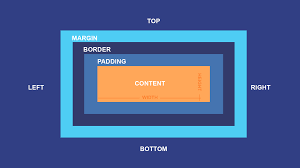
The CSS Box Model is one of the most important concepts in web design — it defines how every element on a webpage is structured and how it takes up space.
Think of it like this: every HTML element is a rectangular box, and the box model describes what’s inside and around that box.
🧱 The 4 Layers of the Box Model:
- Content:
- This is the actual stuff inside the element — text, images, or other elements.
- You can control its size using width and height.
- Padding:
- The space between the content and the border.
- It creates breathing room inside the element.
- Controlled with properties like padding, padding-top, padding-right, etc.
- Border:
- Surrounds the padding and content.
- You can style it with border-width, border-style, and border-color.
- Example: border: 2px solid red;
- Margin:
- The space outside the border — it separates the element from others.
- Controlled using margin, margin-top, margin-right, etc.
🧮 Total Element Size Formula:
Total width = margin-left + border-left + padding-left + width + padding-right + border-right + margin-right
Total height = margin-top + border-top + padding-top + height + padding-bottom + border-bottom + margin-bottom
🧱 1. Content Area:
- This is where your actual text, image, or child elements live.
- Its size can be set using the width and height properties.
- Example:
div {
width: 200px;
height: 100px;
}
- Only this content area is affected — not padding or borders unless you use box-sizing: border-box.
🧤 2. Padding Area:
- The padding adds space inside the element, between the content and the border.
- Padding expands the element’s background color or image (since it’s part of the box itself).
- Example:
div {
padding: 20px;
}
- If you had text inside, it’d look like it’s sitting on a comfy cushion — not touching the edges.
🧱 3. Border Area:
- The border wraps around the padding and content.
- You can make it visible, styled, or invisible.
- Example:
div {
border: 3px solid blue;
}
- Borders increase the total box size unless you use box-sizing: border-box.
🪞 4. Margin Area:
- The margin is the space outside the box — it separates this element from others.
- Margins are transparent and don’t affect the element’s background.
- Example:
div {
margin: 15px;
}
- Margins can even collapse vertically — for example, if two paragraphs each have a margin-top of 10px, the space between them will be 10px, not 20px
🧠 Why the Box Model Matters:
-
It helps you predict how elements fit together.
-
It controls spacing, alignment, and layout.
-
It’s the foundation for flexbox, grid, and responsive design.
-
And honestly, mastering it makes you look like a CSS wizard. 🧙♂️
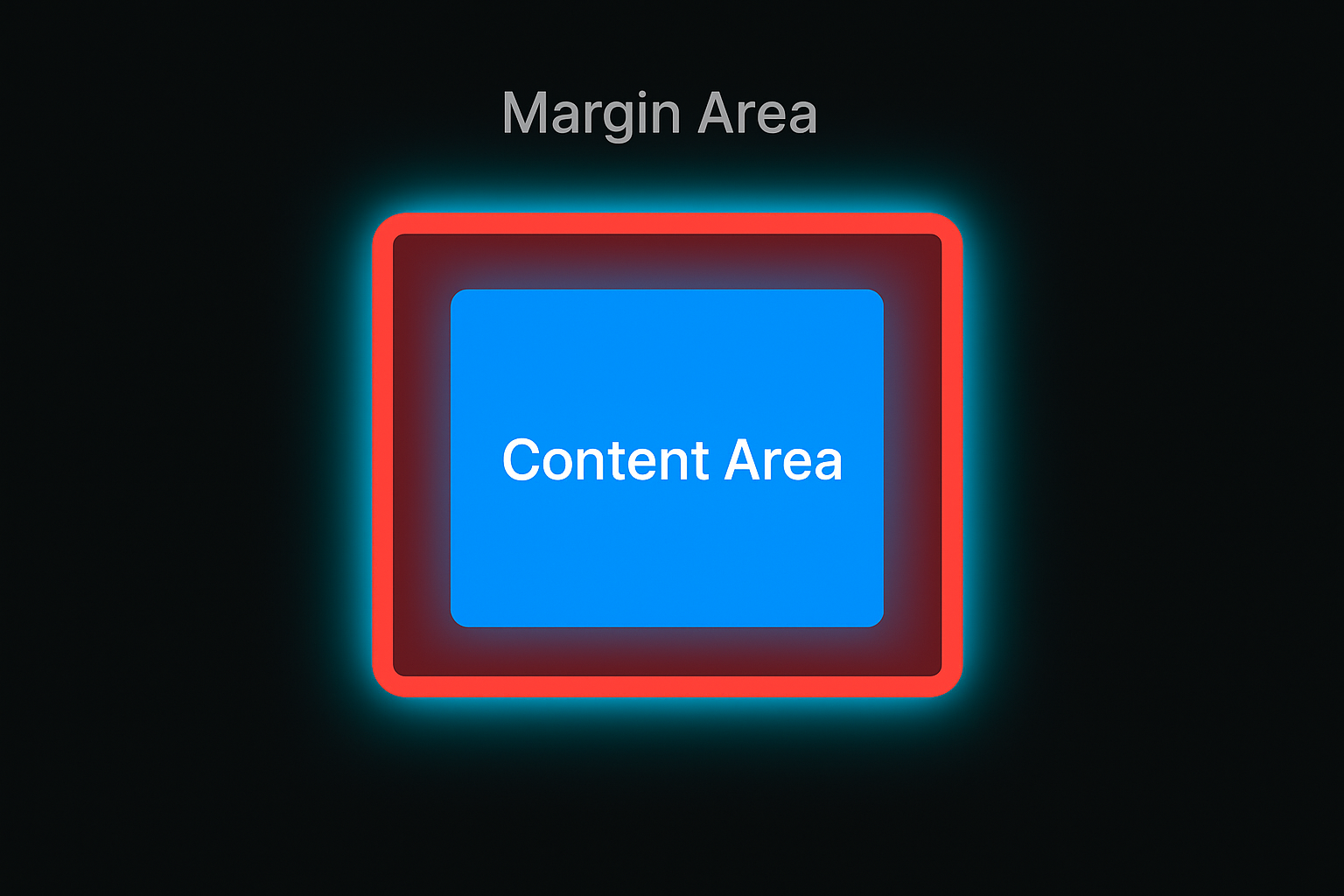
😎 let’s visualize the CSS Box Model with a simple and colorful example.
HTML Code:
<!DOCTYPE html>
<html lang="en">
<head>
<meta charset="UTF-8">
<meta name="viewport" content="width=device-width, initial-scale=1.0">
<title>CSS Box Model Example</title>
<link rel="stylesheet" href="style.css">
</head>
<body>
<div class="box">
<p>Content Area</p>
</div>
</body>
</html>
CSS code:
body {
background-color: #0e0e10;
font-family: Arial, sans-serif;
color: #fff;
display: flex;
justify-content: center;
align-items: center;
height: 100vh;
}br
.box {
background-color: #1e90ff; /* content area */
color: white;
text-align: center;
width: 200px;
padding: 30px; /* inner spacing */
border: 10px solid #ff6347; /* border around padding */
margin: 40px; /* space outside the box */
box-shadow: 0 0 20px #00ffff; /* glow for fun */
}br
/* Add background colors to visualize each layer */
body::before {
content: "Margin Area";
position: absolute;
top: 10%;
left: 50%;
transform: translateX(-50%);
color: #888;
font-size: 18px;
}
p {
background-color: rgba(0, 0, 0, 0.3);
padding: 10px;
border-radius: 5px;
}
Output: