 🔸 What Exactly Is Margin?
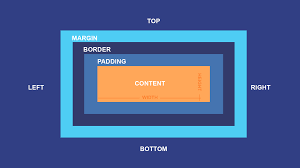
In the CSS box model, every element is a rectangular box made up of 4 layers:
Content → Padding → Border → Margin
The margin is the outermost layer — the transparent space between an element’s border and its neighbors.
It doesn’t have color, but it affects spacing and layout heavily.
🔸 Margin Syntax and Values:
You can define margins in different ways:
| Syntax |
Meaning |
| margin: 20px; |
20px on all four sides |
| margin: 10px 30px; |
10px top & bottom, 30px left & right |
| margin: 10px 15px 20px; |
10px top, 15px right & left, 20px bottom |
| margin: 10px 15px 20px 25px |
top → right → bottom → left (clockwise order) |
You can also set them individually:
margin-top: 10px;
margin-right: 15px;
margin-bottom: 20px;
margin-left: 25px;
🔸 Accepted Units:
| Type |
Example |
Meaning |
| Pixels |
margin: 20px; |
Fixed size |
| Percentages |
margin: 20%; |
Based on width of the containing block |
| Viewport Units |
margin: 5vw; |
Based on viewport width |
| em,rem |
margin: 1.6em |
Relative to font size |
🔸 Auto Margins:
- margin: auto; can automatically fill available space.
-
Most famously used to center block elements horizontally:
.box {
width: 300px;
margin: 0 auto;
}
The browser gives equal left/right margins to center the box.
🔸 Margin Collapsing (Important!):
Adjacent vertical margins can collapse — they don’t add up; the larger margin wins.
Example:
<p style="margin-bottom: 40px;">Hello</p>
<p style="margin-top: 20px;">World</p>
Output:
The space between them will be 40px, not 60px.
Horizontal margins (left/right) do not collapse — only top/bottom ones do.
🔸 Negative Margins:
You can use negative values:
margin-top: -20px;
This pulls the element closer to others or even overlaps them. It’s powerful — but use it carefully.
🔸 Inherit & Initial:
-
margin: inherit; — takes the margin value from its parent.
-
margin: initial; — resets to the browser’s default (usually 0).
🔸 What Exactly Is Padding?
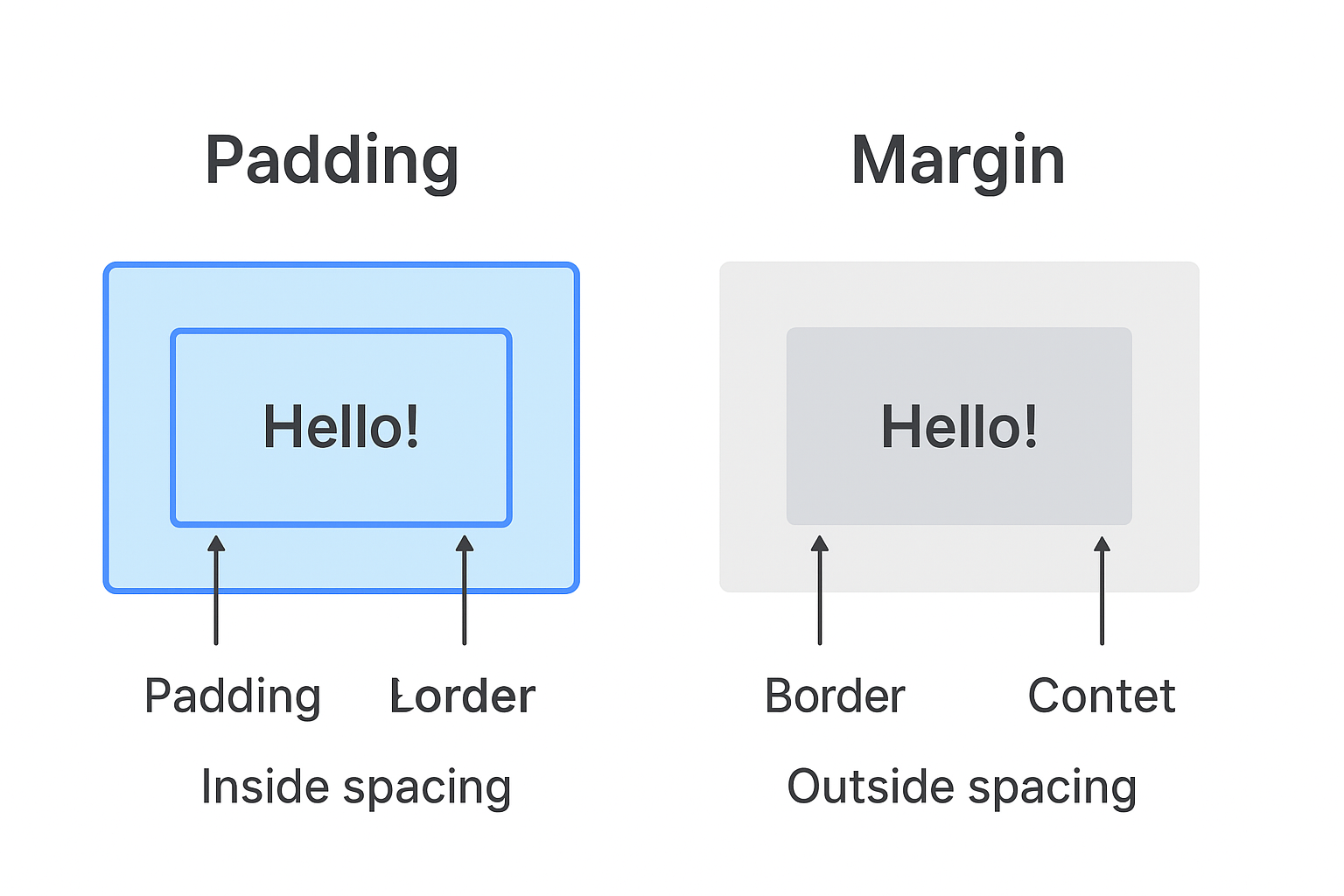
Padding is the space between an element’s content and its border — it’s the inner spacing of the box.
If margin pushes things away from an element, padding pushes things inward, creating breathing room inside the element.
the padding lies between content and border — it makes the box look roomier from the inside.
🧩 Syntax:
You can set padding in several ways:
| Syntax |
Meaning |
| padding: 20px; |
20px padding on all sides |
| padding: 10px 30px; |
10px top & bottom, 30px left & right |
| padding: 10px 20px 30px; |
10px top, 20px right & left, 30px bottom |
| padding: 10px 15px 20px 25px; |
top → right → bottom → left |
Or individually:
padding-top: 10px;
padding-right: 20px;
padding-bottom: 15px;
padding-left: 25px;
📏 Units:
Padding accepts the same types of units as margins:
-
px (pixels) — fixed space
-
% (percentage) — relative to the element’s width, not height
-
em / rem — relative to font size
-
vw / vh — relative to viewport
Exaample:
.box {
background-color: skyblue;
padding: 20px;
border: 2px solid blue;
}
<div class="box">Hello, Padding!</div>
Output:
👉 The text sits 20px away from the border on all sides.
⚙️ Important Notes:
| Feature |
Margin |
Padding |
| Definition |
Space outside the element’s border |
Space inside the element’s border |
| Position in box model |
Outmost layer |
Between content and border |
| Affects |
Distance between elements |
Distance between content and border |
| Color/Background |
Always transparent |
Inherits the element’s background color |
| Can collapse |
Yes (vertical margins can collapse) |
No |
| Used for |
Creating space around elements |
Creating space inside elements |
| Accept negative values |
✅ Yes (can overlap elements) |
No |
| Common use case |
Separating elements (like boxes, sections, etc.) |
Making content less cramped inside a container |